
🛒 How to Register as a Vendor on iMartStore
Step 1: Visit Website
Go to imartstore.com
Step 2: Vendor Registration
Scroll to footer → click “Vendor Registration.”

Step 3: Enter Details
- Full Name
- Password & Confirm

Step 4: Select Role
Choose “I am a Vendor.”
- Enter Shop Name
- Shop URL
Phone Number
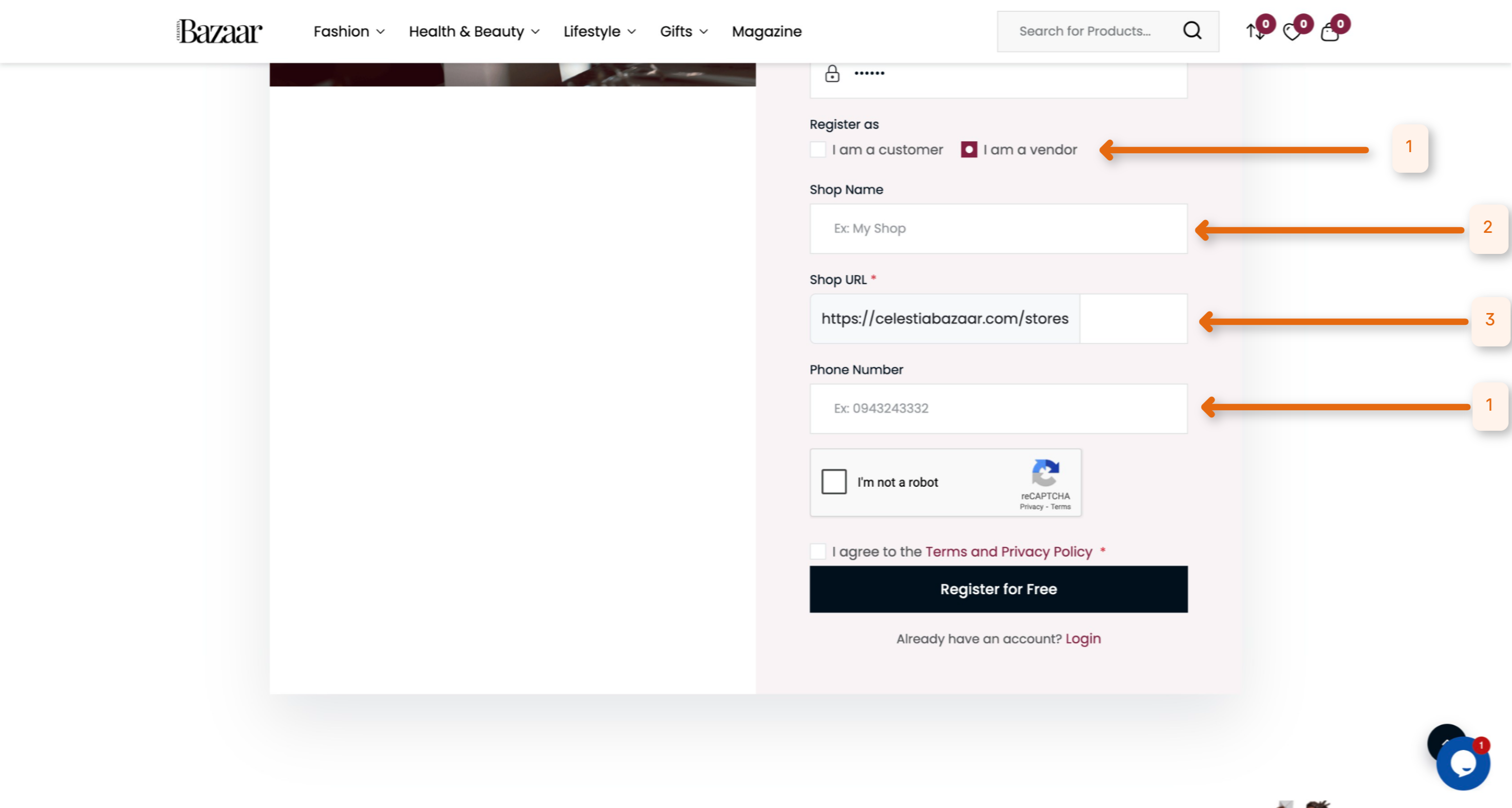
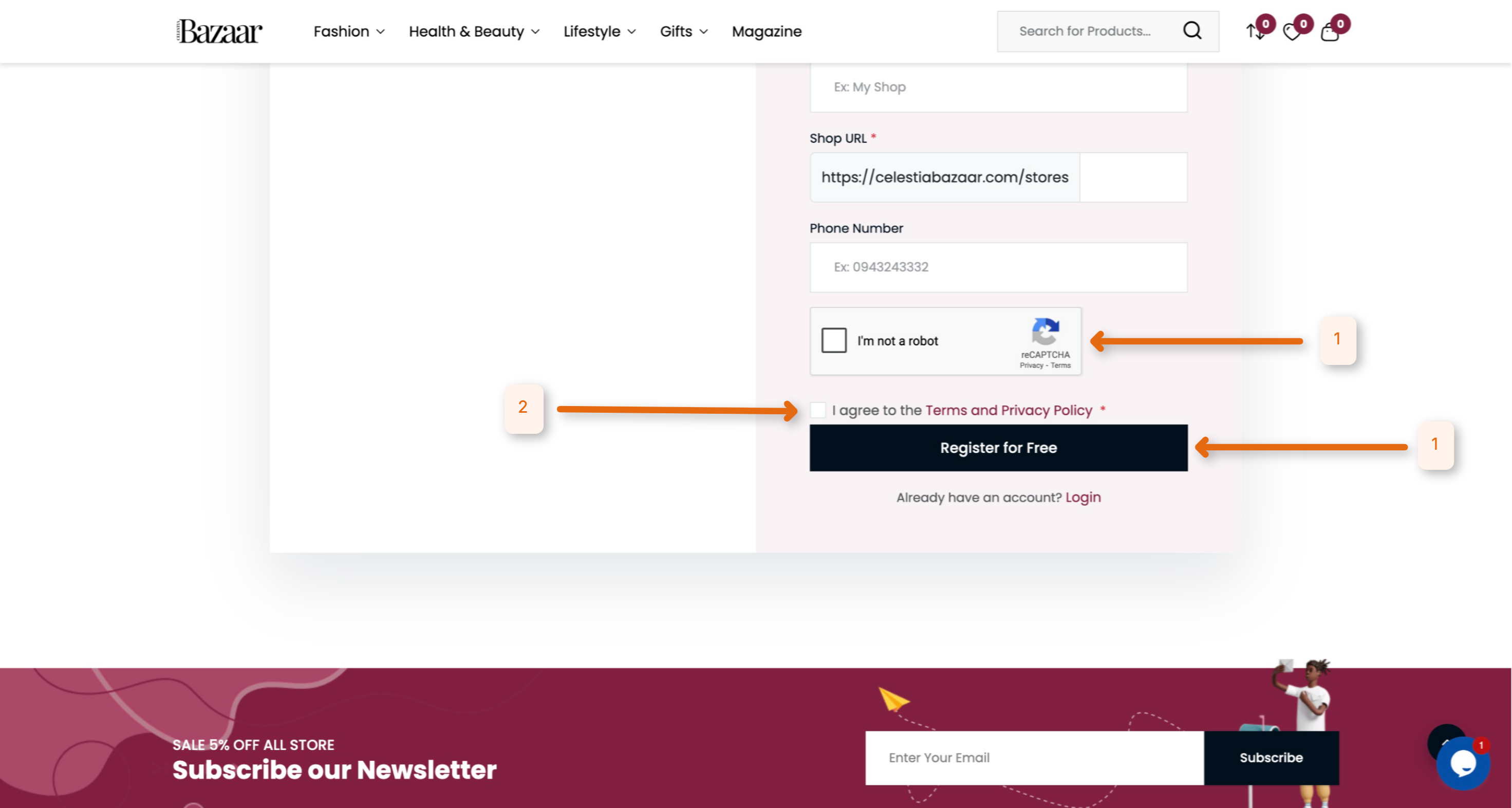
Step 5: Security Check
- Tick reCAPTCHA
- Accept Terms
- Solve math → Pay & Register
Step 6: Wait for Approval
Dashboard shows: “Please wait for admin approval.”
After approval: “Congratulations, you are a Vendor!”
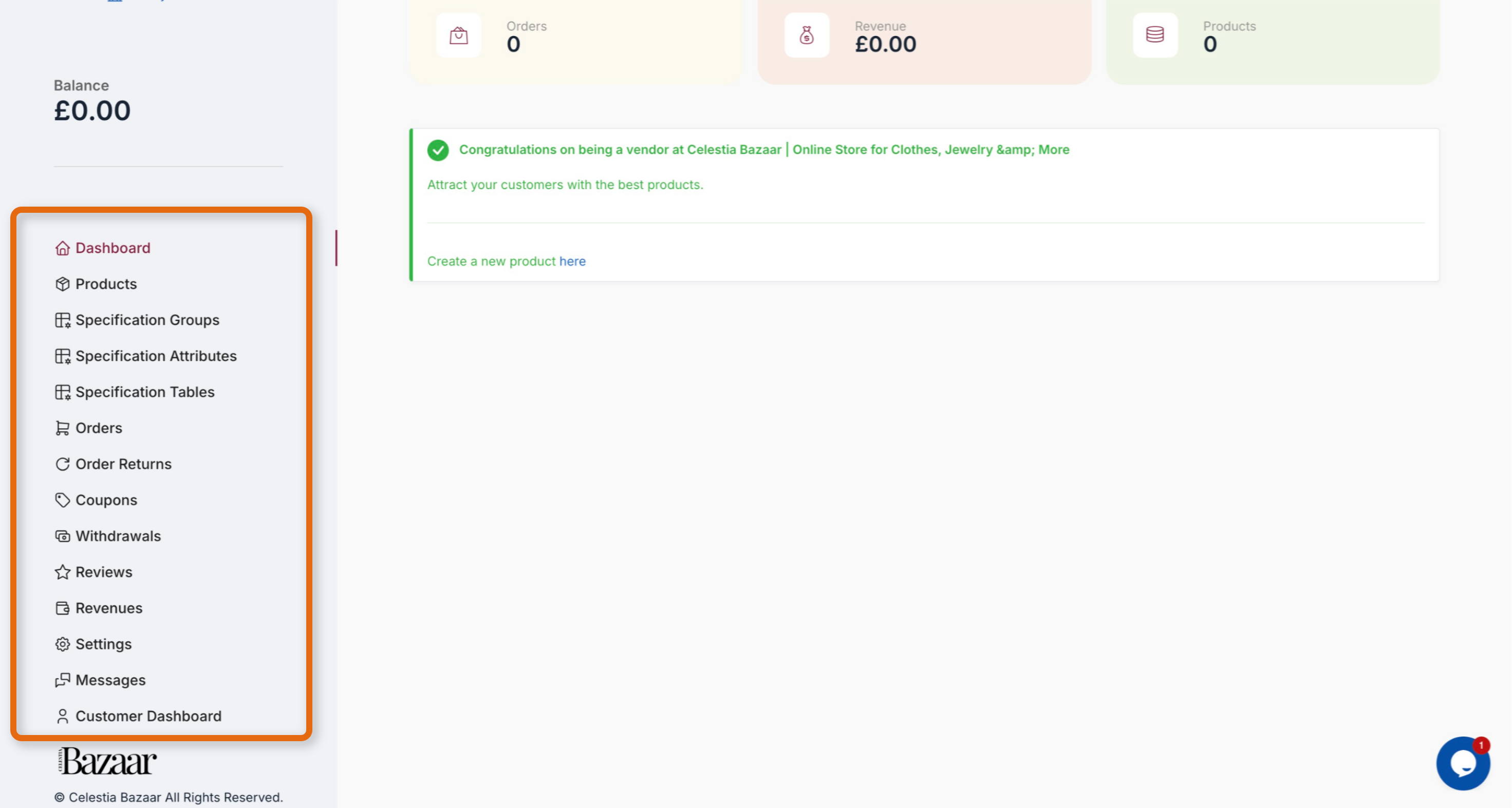
Step 7: Vendor Dashboard
Left sidebar → Products, Orders, Revenues, Settings.
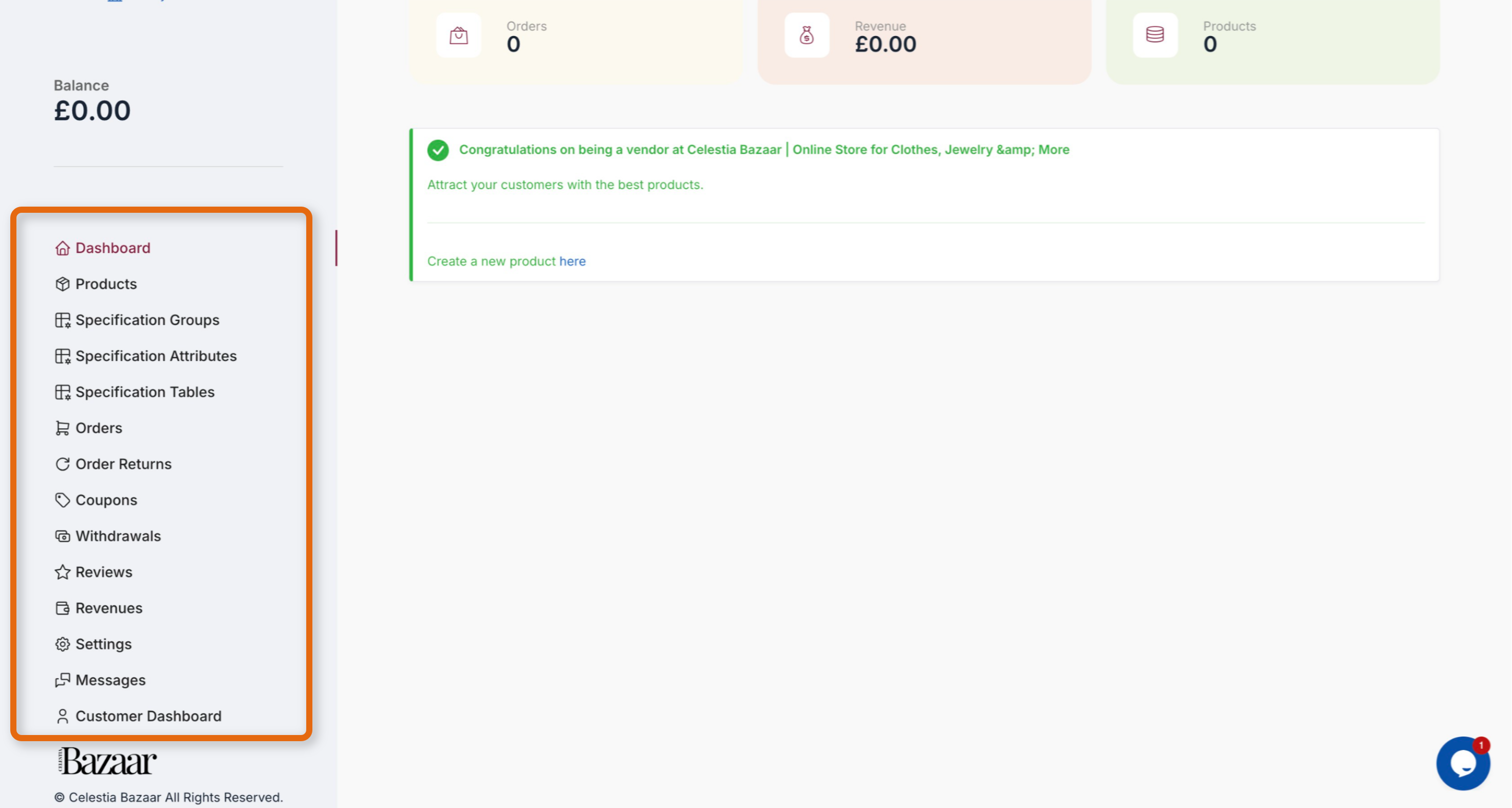
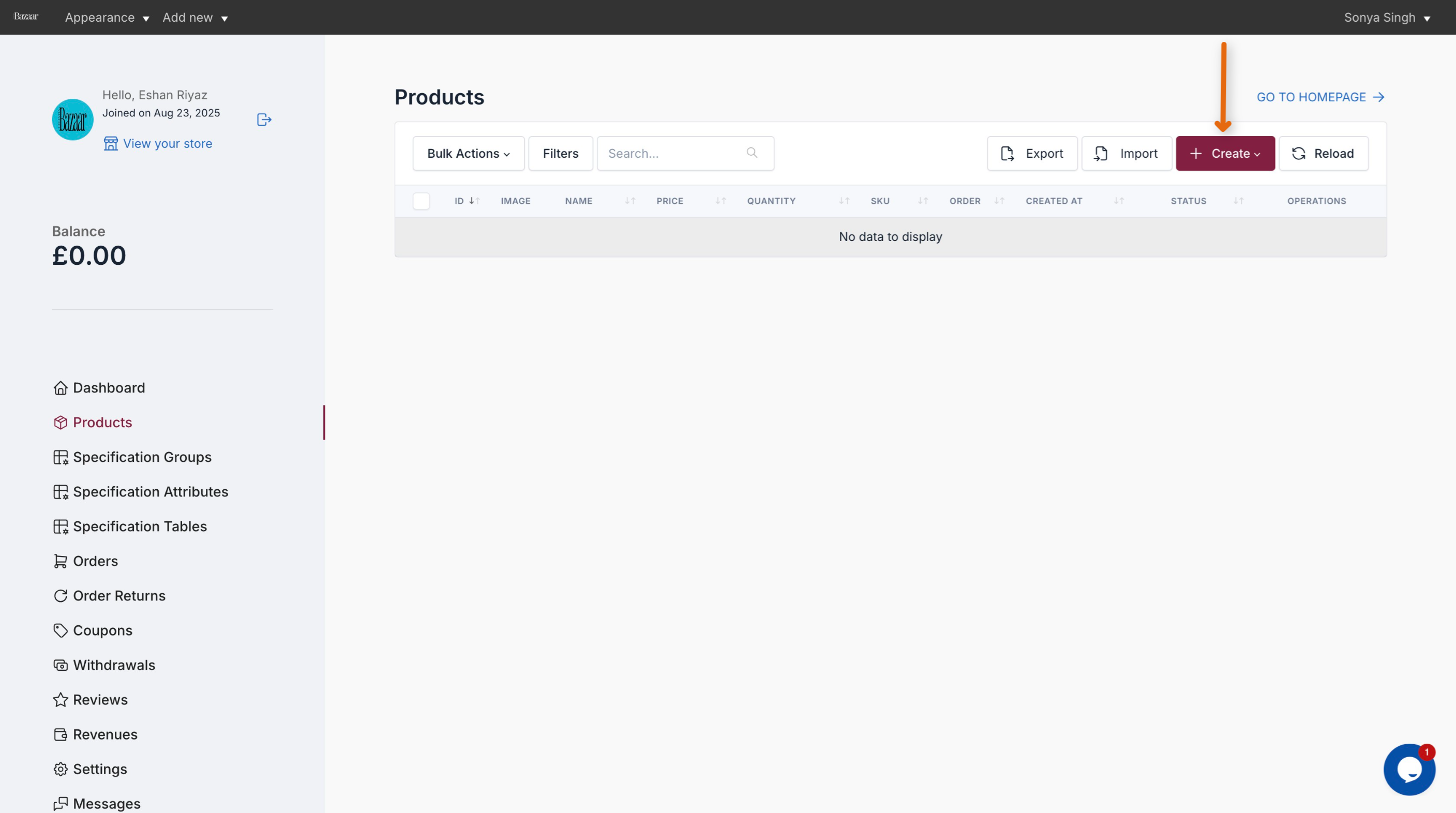
Step 8: Add Product
Click “Create” to add your first product.
Step 9: Product Type
Choose Physical or Digital.
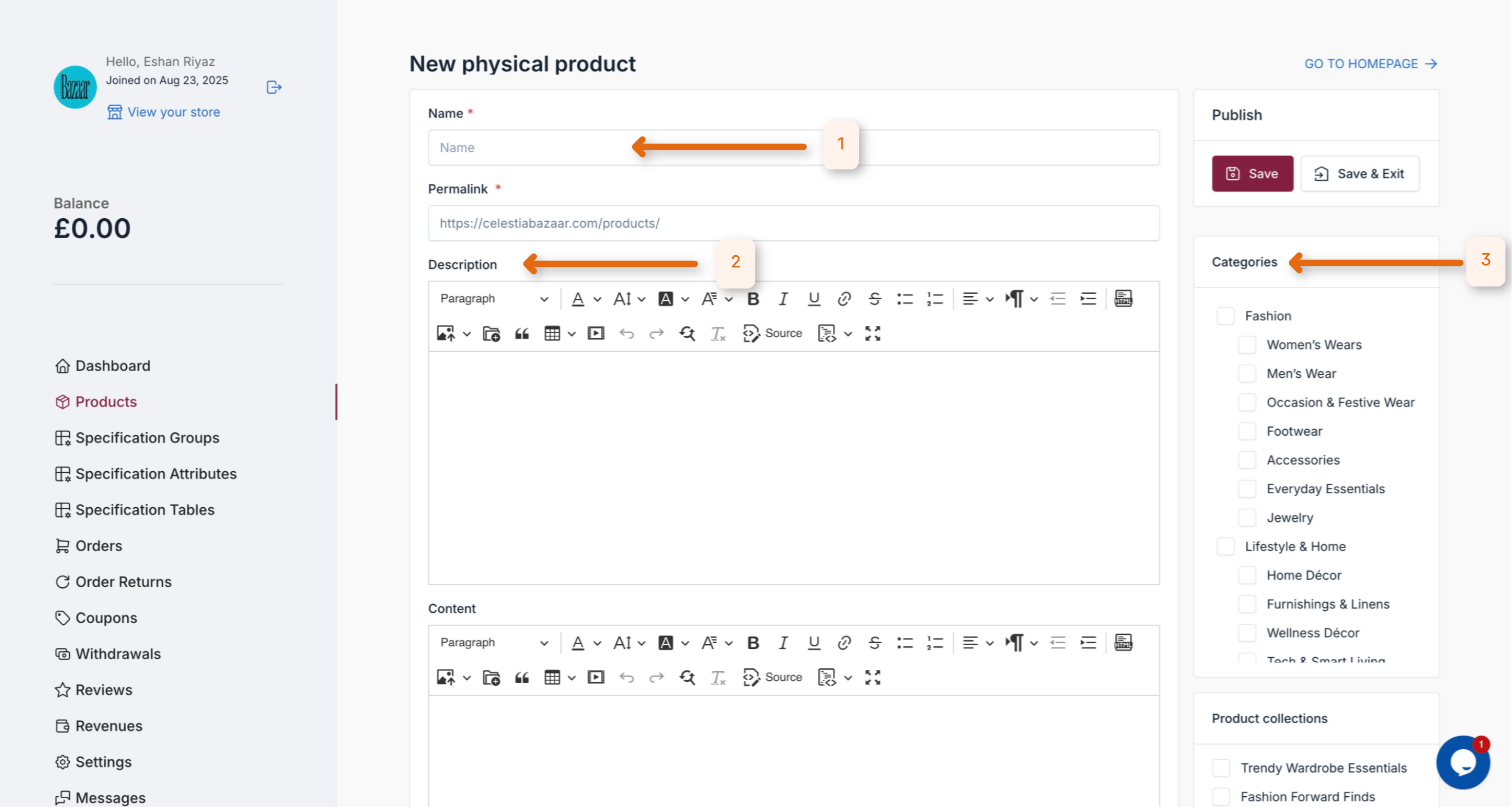
Step 10: Product Info
- Name
- Description
- Category
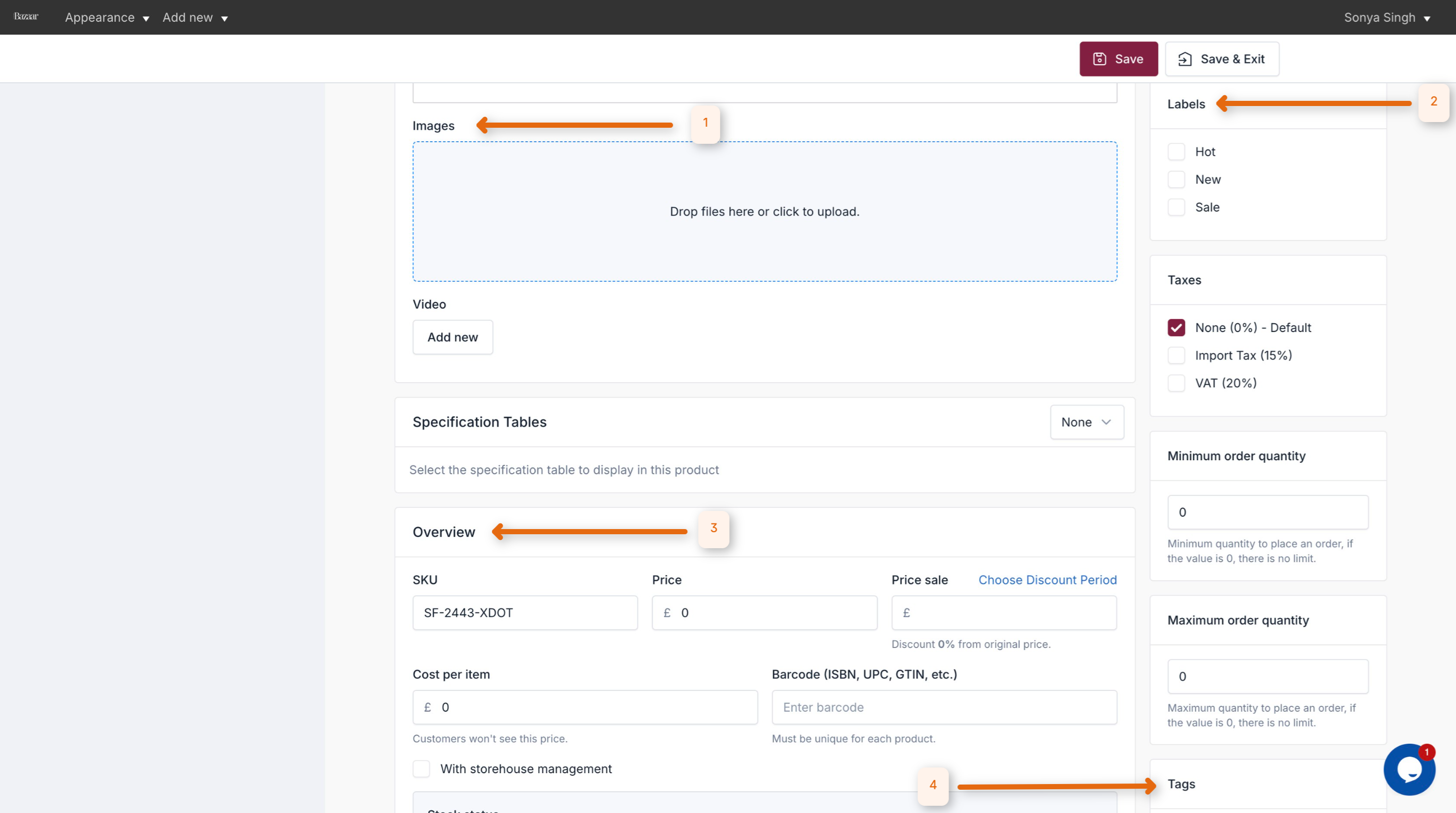
Step 11: Details
- Upload images/videos
- Add price, stock, labels, tags
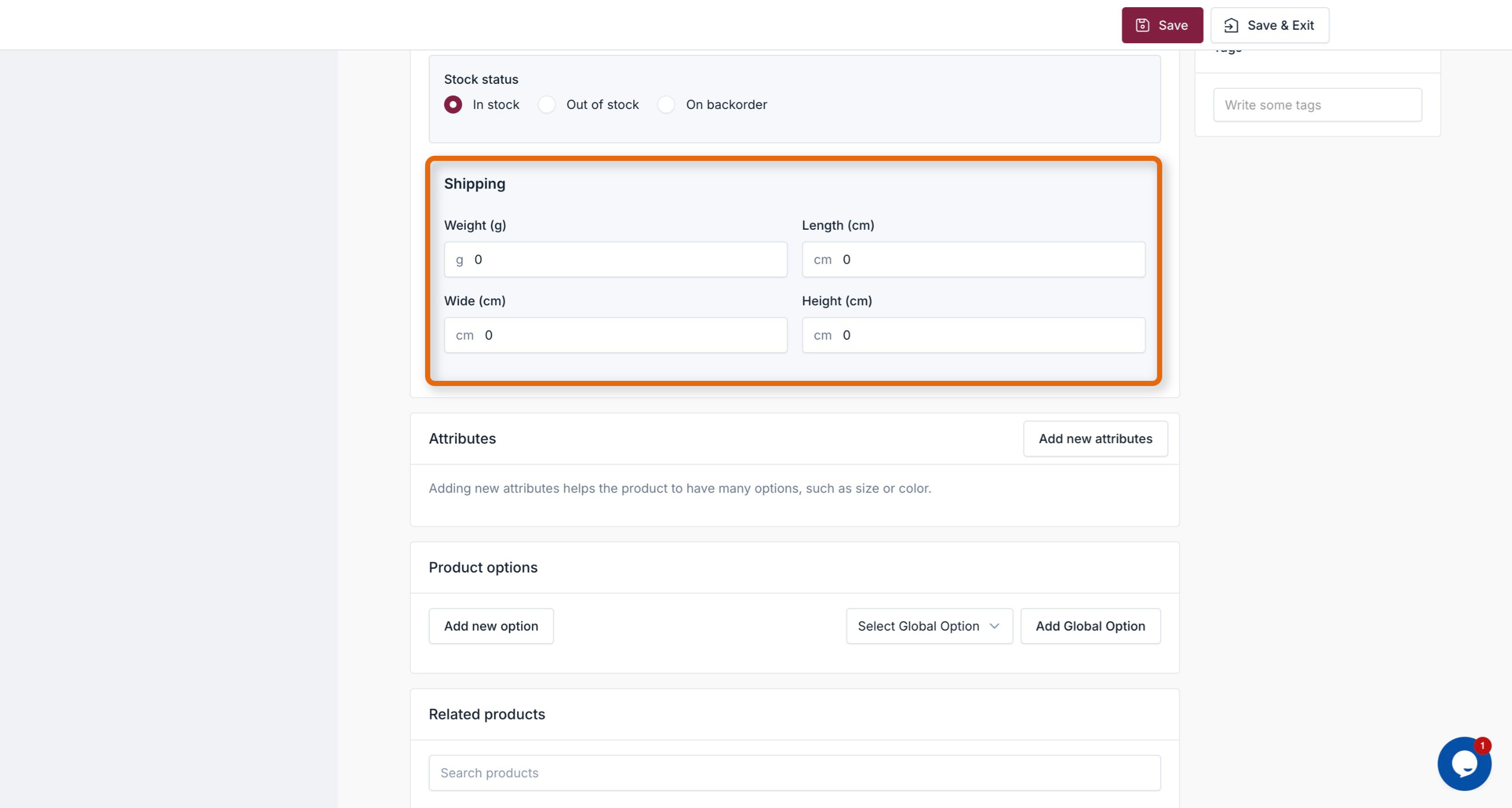
Step 12: Shipping (for physical items)
Add Weight, Length, Width, Height.
Step 13: Save Product
Product status = Pending.
Step 14: Admin Approval
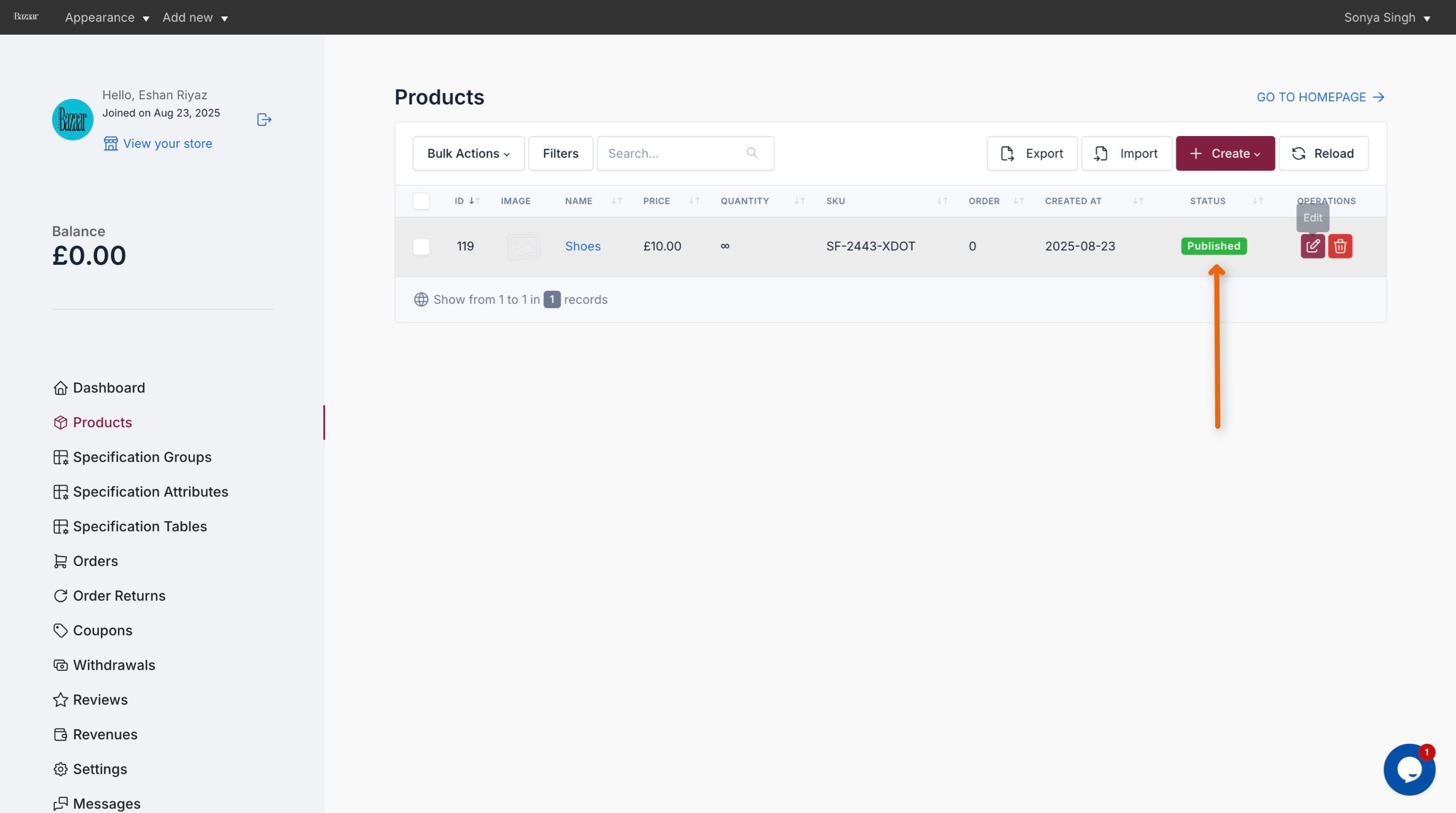
Once approved → status changes to Published.
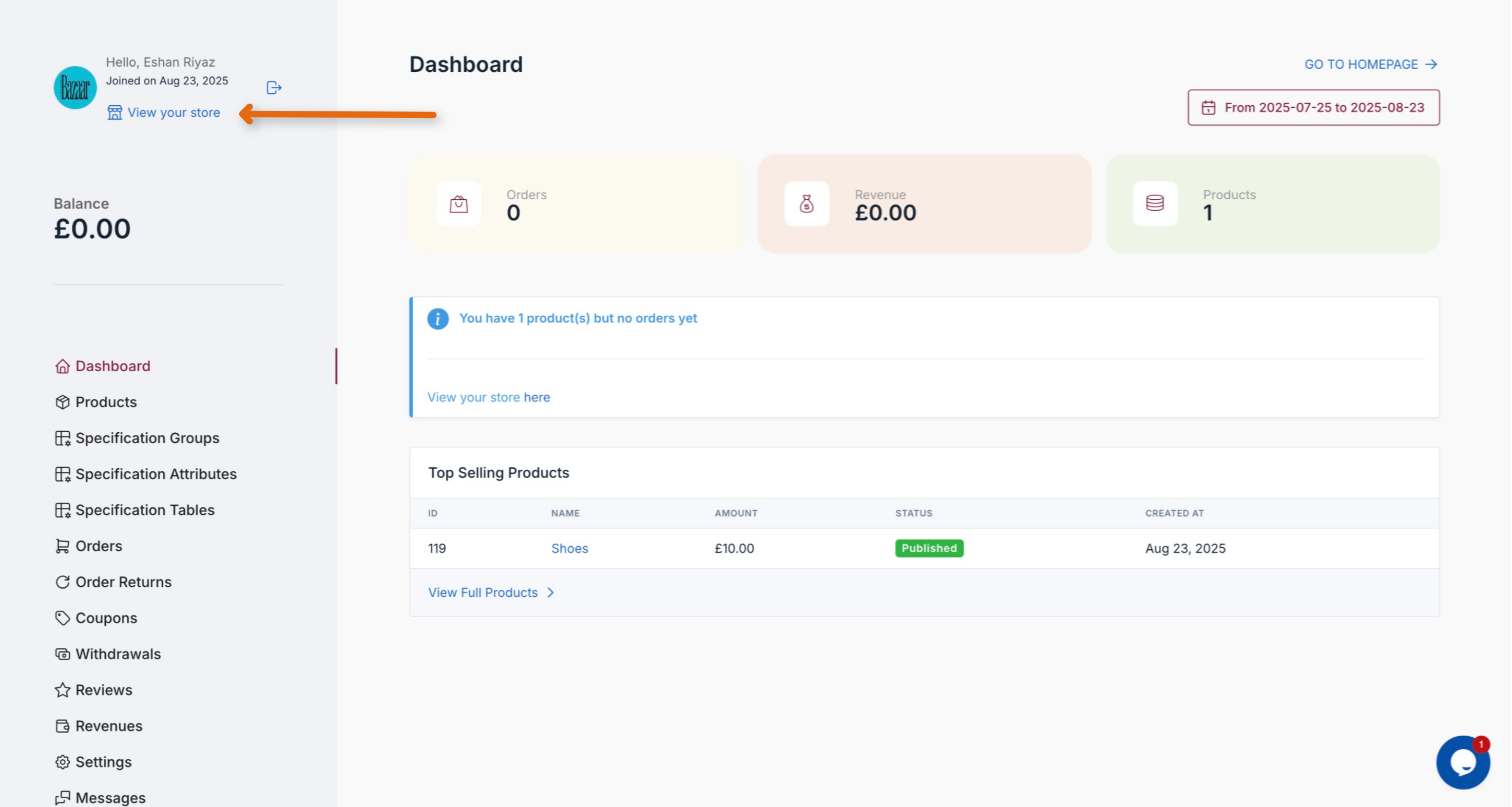
Step 15: View Store
Sidebar → View Your Store to see your shop.
Done!
Now you can manage products, track orders, monitor revenues, and grow your store on iMartStore.